The MultiVariants Radio option allows customers to select one choice from a list of product customization options. Each radio choice can include its own image, add-on price, and default selection. It is useful for products that require customers to choose one option, such as material, model, packaging, or customization type.
Set Up a Custom Radio Option
To set up the Radio option, follow these steps:
Open Product Options
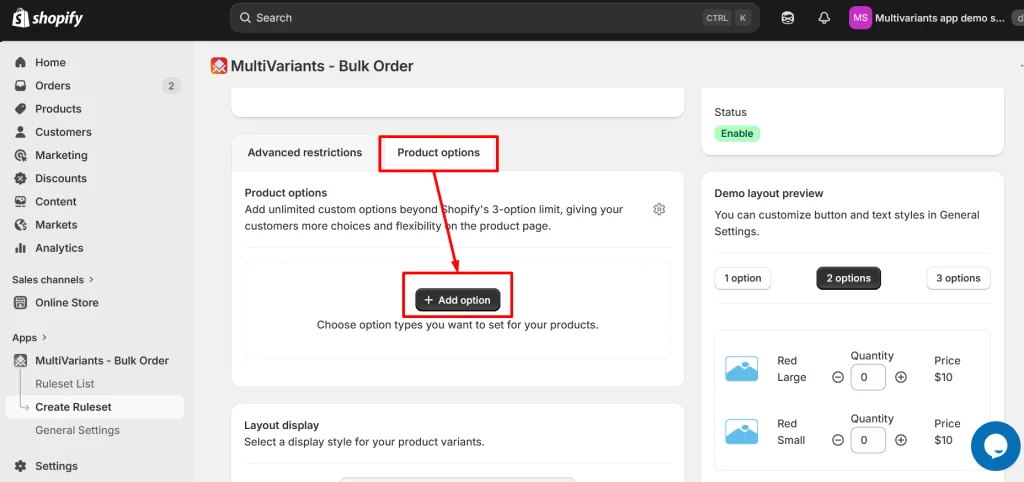
>> Go to the MultiVariants dashboard, open an existing ruleset (or create a new one), open the Product Options tab at the bottom, and click “+ Add option“.
Select the Radio Option
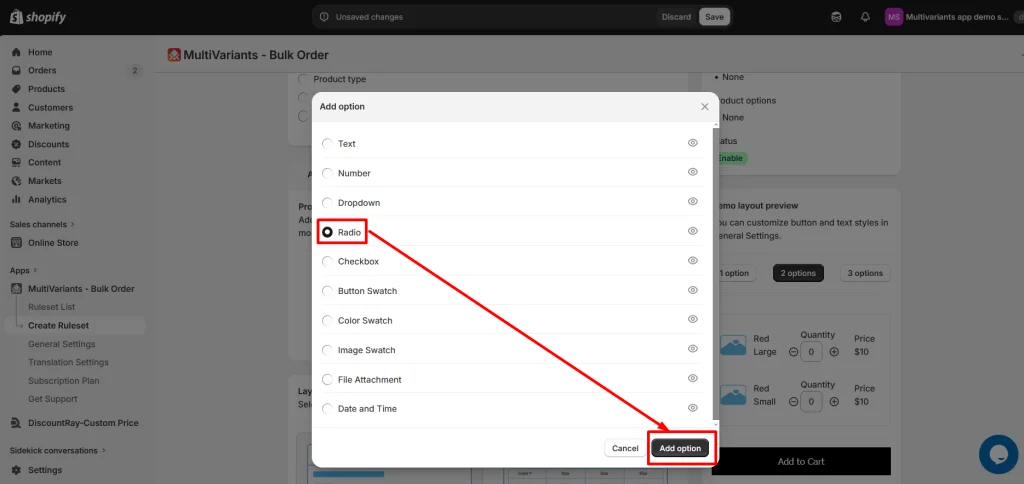
>> Select Radio from the available option types and click Add option. This creates a new single-selection option where customers can choose only one value from the available choices.
Configure the Radio Option Settings
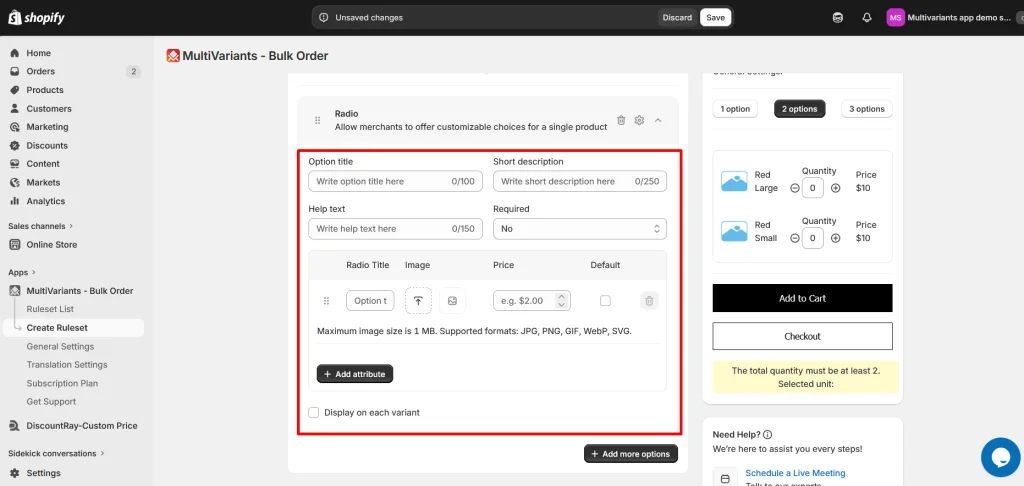
>> Configure the fields based on how you want the Radio option to appear on your storefront. Any field you leave empty will remain unused.:
Option title — the heading displayed above the radio choices. For example, use “Material” when customers need to select a material type..
Short description — optional one-liner for context.
Help text — optional helper line below the radio list.
Required — enable this when customers must select a radio choice before adding the product to the cart..
Display on each variant — keep this disabled when the same selection applies to all variants. Enable it when customers need to choose different radio options for individual variants..
Add Your Radio Choices
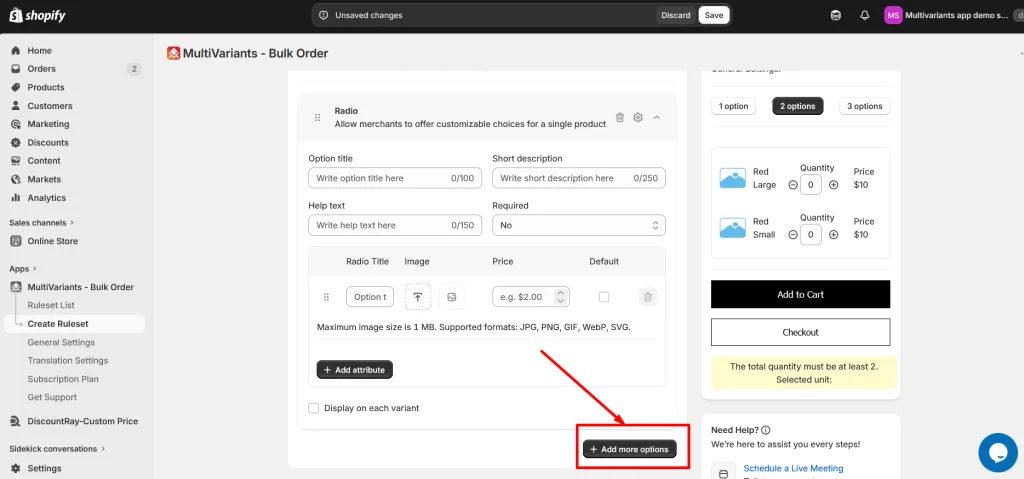
>> Add your radio choices in the attribute table below the basic fields. These attributes are the actual choices customers will see on the storefront. Each row has the following columns:
Radio Title — the choice label, e.g. “Hard” (max 100 characters).
Image — optional thumbnail.
Price — optional additional charge applied when the customer selects this choice.
Default — select one choice to display as pre-selected when customers open the product page. Only one radio choice can be selected as the default.
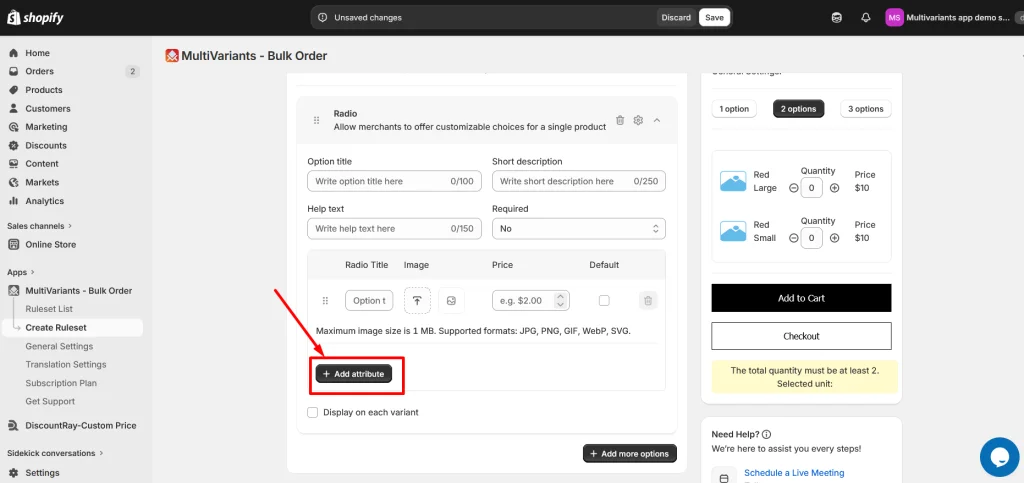
Click + Add attribute to add another row. Drag the handle on the left of any row to reorder.
Save the Radio Option
>> Click Save in the top save bar.
Your Radio option is now live on every product the ruleset applies to. You can also add more options by clicking the + Add more options button, and adjust the design and placement of the option by following the steps below.
>> To add another option, click + Add more options at the bottom.
Manage Radio Option Placement and Styling
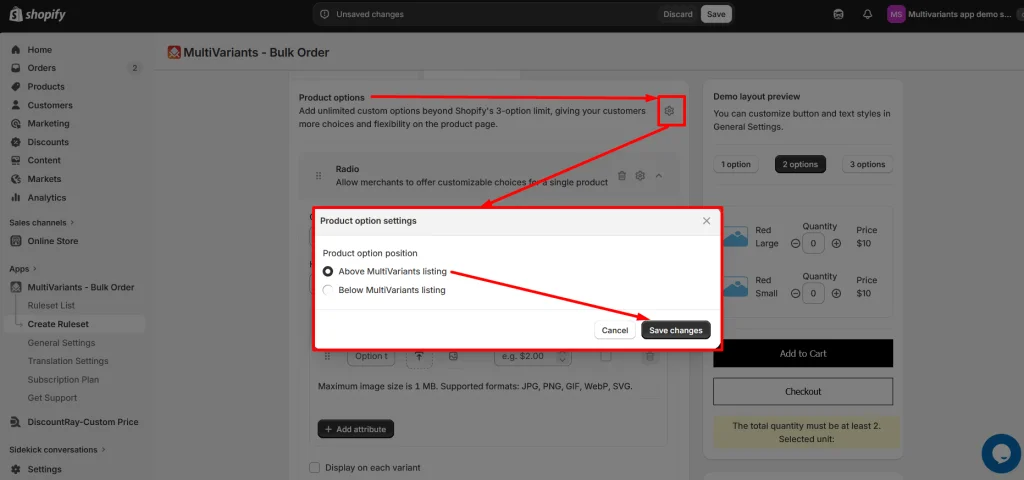
Choose the Radio Option Placement
>> To choose where the Radio option appears on the product page, click the small gear icon at the top of the Product Options tab, select Above or Below MultiVariants listing, and click Save changes.
Customize the Radio Option Style
>> To restyle the Radio option, click the gear icon at the top right of the option card and adjust border colors, background, text color, and border radius. Click Customize to apply.
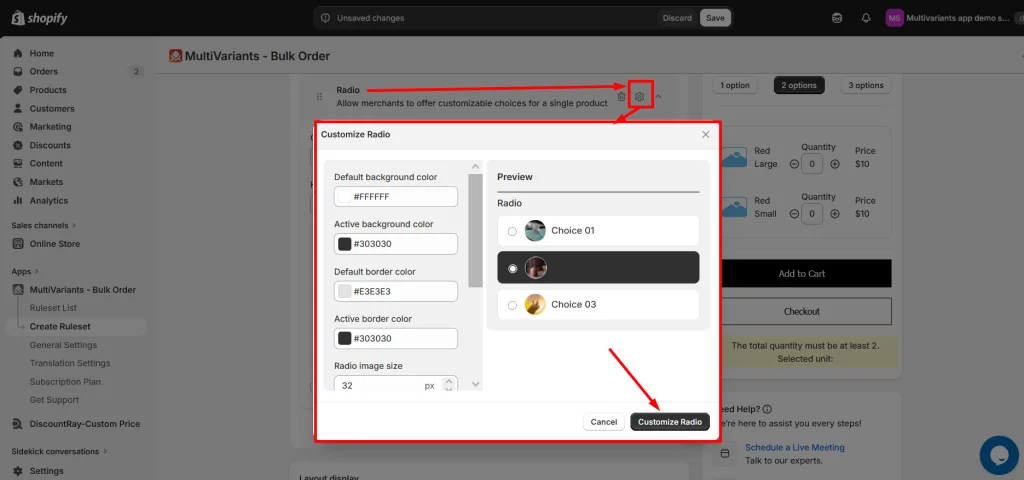
Your Radio option is now ready to use. Customers can select their preferred choice directly from your bulk order section.
You can also customize other product option types, including Dropdown, Text, Button Swatch, and Image Swatch options.
Common Issues
The Radio option is not showing on my product page
Make sure the ruleset containing the Radio option is applied to the product. Also check that the MultiVariants app embed is enabled in your Shopify theme.
Customers can select multiple choices
Radio options allow only one selection. If you want customers to select multiple choices, use the Checkbox option instead.
The add-on price is not changing
Check that a price value is added to the selected radio choice and that the product option is saved.
Need Help?
Still, if you face any further issues or need help, feel free to contact us. Our support team will be happy to help you.
You can always reach us via
💬 Live Chat: in MultiVariants app
📧 Email: support@multivariants.com
📅 Live Meeting: https://calendly.com/efolisupport
Good luck, and happy selling with MultiVariants! 🚀