The Number option in MultiVariants lets customers enter a numeric value when ordering a product. You can set minimum and maximum values, make the input required, add an optional price, and display one shared number field or a separate field for each variant.
Before You Start: Make sure the product is included in the ruleset where you want to add the Number option. The option will appear on products that the ruleset applies to.
If you are new to Product Options, first see how to set up Product Options in MultiVariants.
How to Set Up a Custom Number Option
Follow these steps to create and configure a Number option.
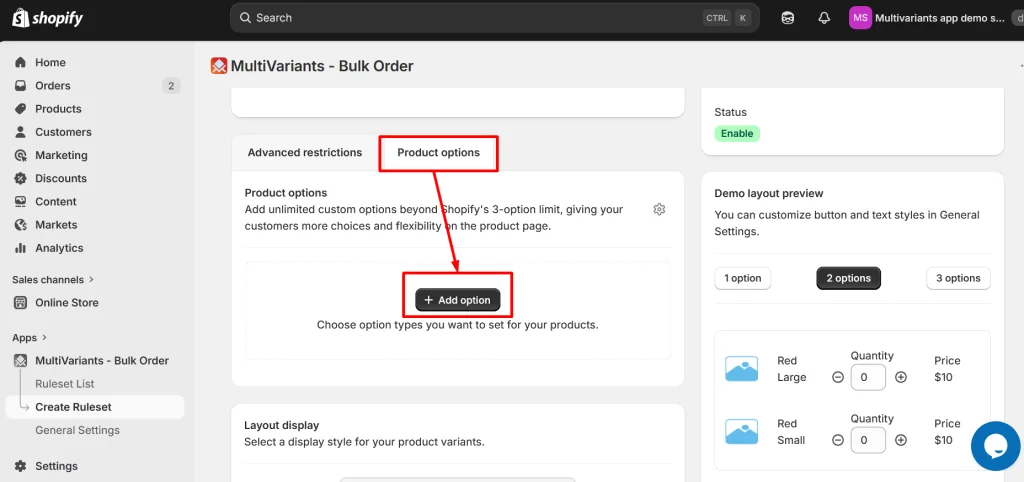
Step#1 Open Product Options
>> Go to the MultiVariants dashboard, open an existing ruleset or create a new one, open the Product Options tab, and click + Add option.
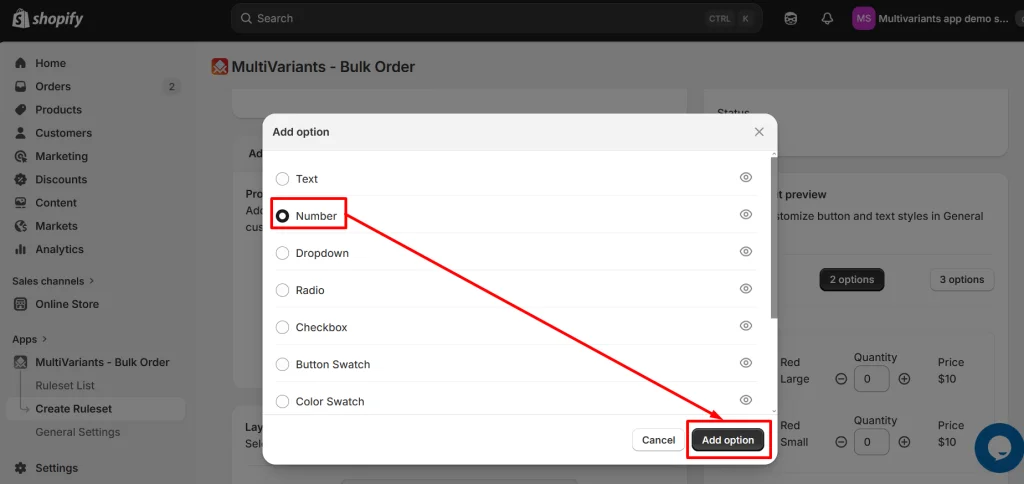
Step#2 Select the Number Option
>> Select Number from the available option types and click Add option.
Step#3 Configure the Number Option Settings
>> Configure the fields based on how you want the Number option to appear and behave on the storefront.
Option title — enter the heading customers will see above the number field, such as “Number of candles.”
Short description — add an optional short description near the option title to explain what customers should enter.
Placeholder text — enter optional example or instruction text that appears inside the empty number field, such as “Enter quantity.”
Help text — add optional instructions or supporting information below the number field.
Minimum value — set the lowest numeric value customers are allowed to enter.
Maximum value — set the highest numeric value customers are allowed to enter.
Price — enter an optional additional charge that applies when the customer completes the Number option. Leave it blank if entering a number should not add an extra charge.
Required — set to Yes if customers must enter a number before adding the product to the cart.
Display on each variant — leave this unchecked to show one shared number field above the bulk-order section. Check it to display a separate number field under each variant row so customers can enter a different value for individual variants.
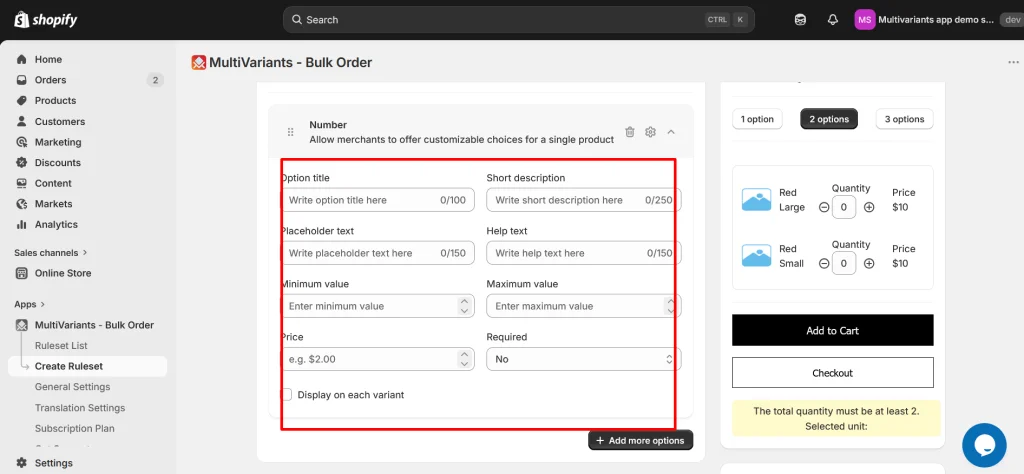
Example: For a birthday cake, you could use “Number of candles” as the option title, set the minimum value to 1 and the maximum value to 20, and make the field required.
Step#4 Save the Number Option
>> Click Save in the top save bar after reviewing the Number option settings.
Step#5 Test the Number Option on Your Storefront
Open a product page where the ruleset applies and test the Number option. Confirm that the field appears correctly, values outside the minimum and maximum limits are restricted, required input is enforced, and any add-on price is applied as expected.
Manage Number Option Placement and Styling
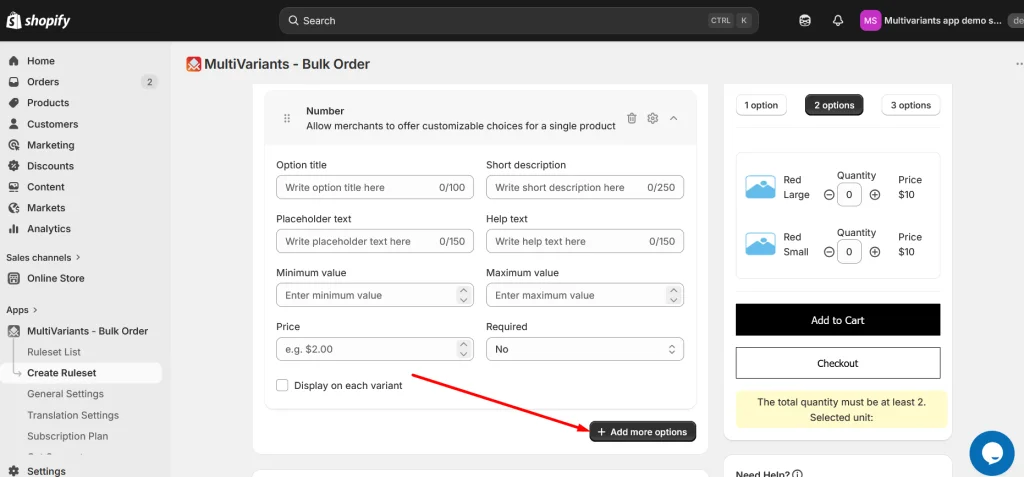
Add Another Product Option
>> Click + Add more options if you want to add another Product Option to the same ruleset.
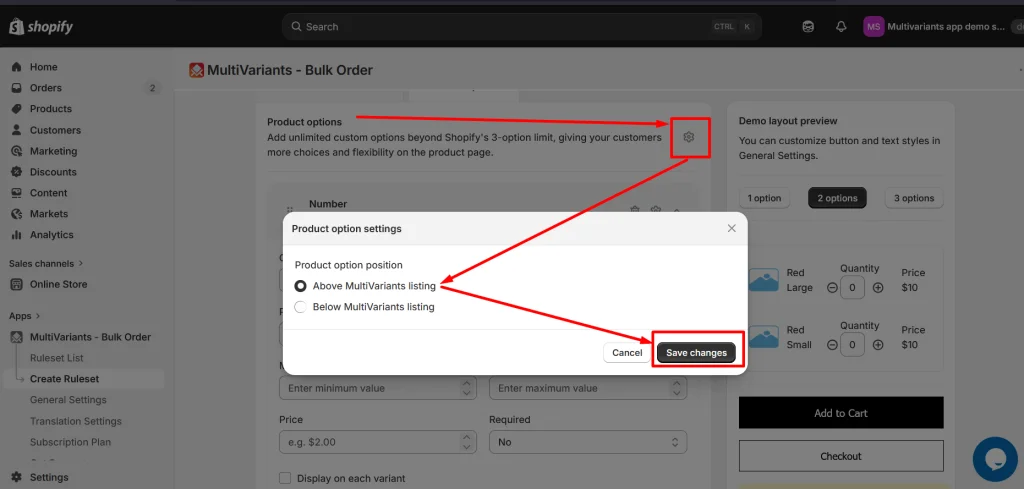
Choose the Number Option Placement
Placement — determines whether the Number option appears above or below the MultiVariants listing on the product page.
>> Click the gear icon at the top of the Product Options tab, select Above MultiVariants listing or Below MultiVariants listing, and click Save changes.
Customize the Number Option Style
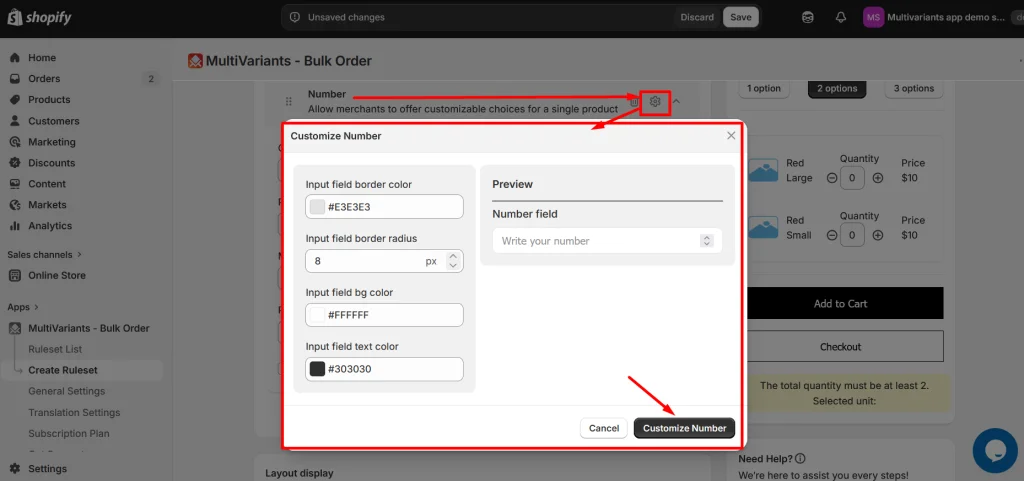
>> Click the gear icon at the top-right of the Number option card to adjust the available styling settings, including border colors, background, text color, and border radius. Click Customize to apply the changes.
Common Issues
Customers can enter a number outside the range I want
Check the Minimum value and Maximum value settings. Make sure they match the lowest and highest numbers customers should be allowed to enter.
Customers can add the product without entering a number
Set Required to Yes if customers must complete the Number option before adding the product to the cart.
Entering a number adds an unexpected charge
Check the Price field in the Number option settings. Remove or update the value if completing the Number option should not add an extra charge.
I need a different number for each variant
Enable Display on each variant to show a separate number field under each variant row.
Customers cannot enter the number I expect
Check both the Minimum value and Maximum value settings and confirm that the number falls within the allowed range.
Need Help?
If the Number option does not appear on the storefront, minimum or maximum restrictions are not working as expected, or you need help configuring the option, contact the MultiVariants support team.
You can always reach us via
💬 Live Chat: in MultiVariants app
📧 Email: support@multivariants.com
📅 Live Meeting: https://calendly.com/efolisupport