The File Attachment option lets your customers upload a file from their device — perfect for custom prints, logos, photos, design files, or any service where you need an image or document from the customer to fulfill the order.
To set up the File Attachment option, follow these steps:
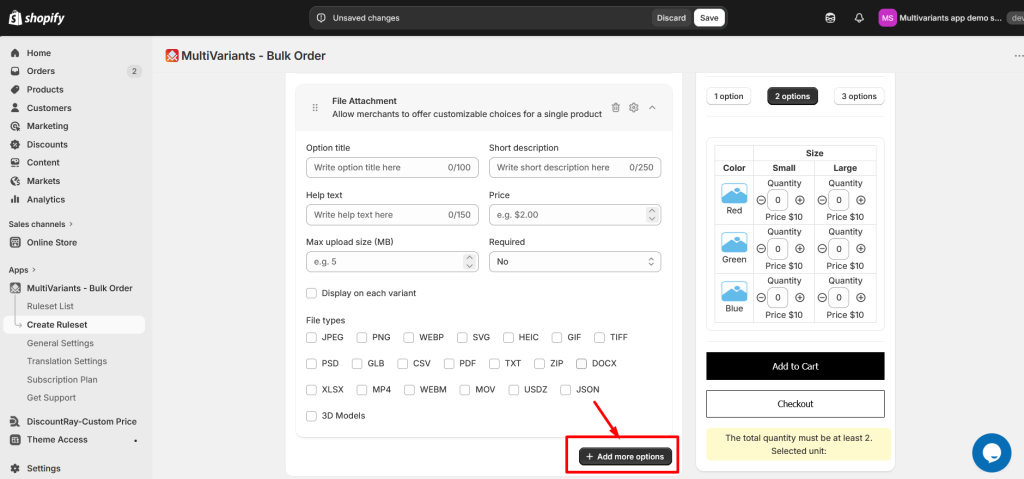
>> Go to the MultiVariants dashboard, open an existing ruleset (or create a new one), open the Product Options tab at the bottom, and click “+ Add option“.
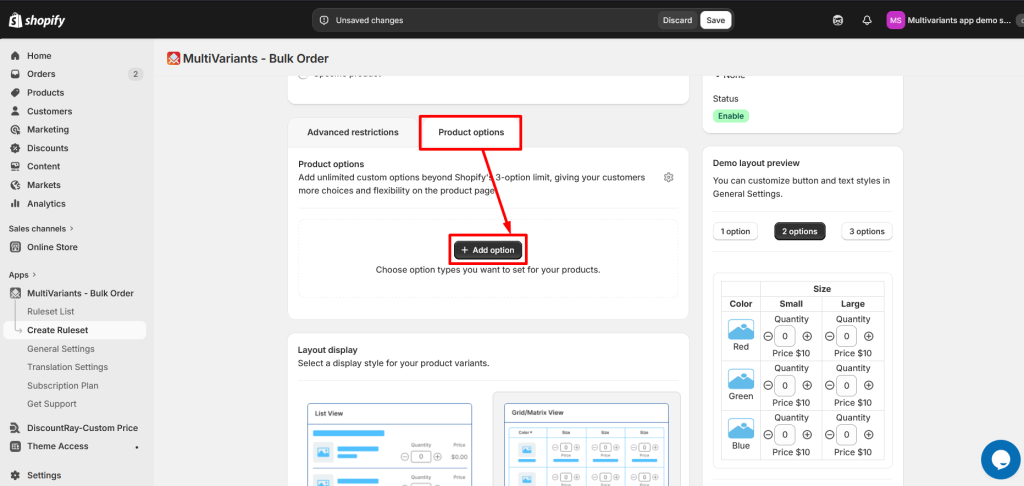
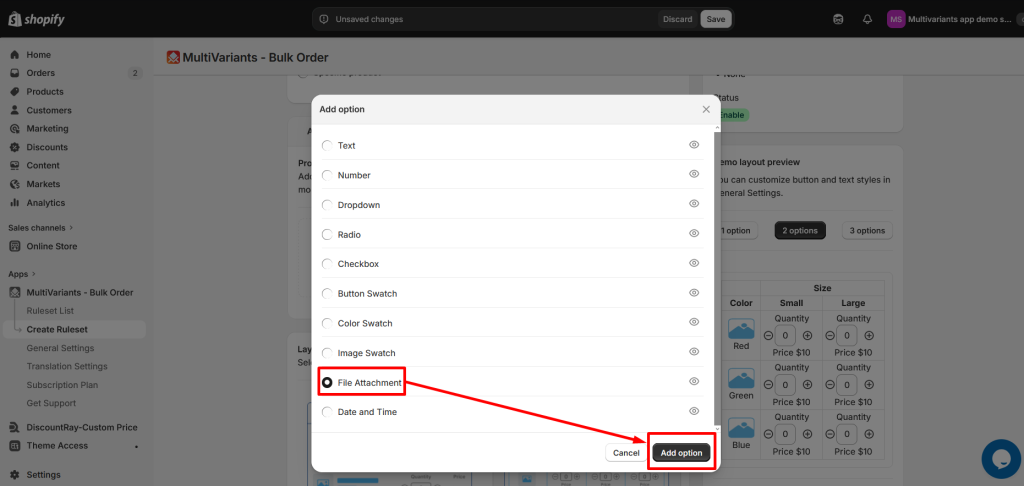
>> Select File Attachment and click Add option.
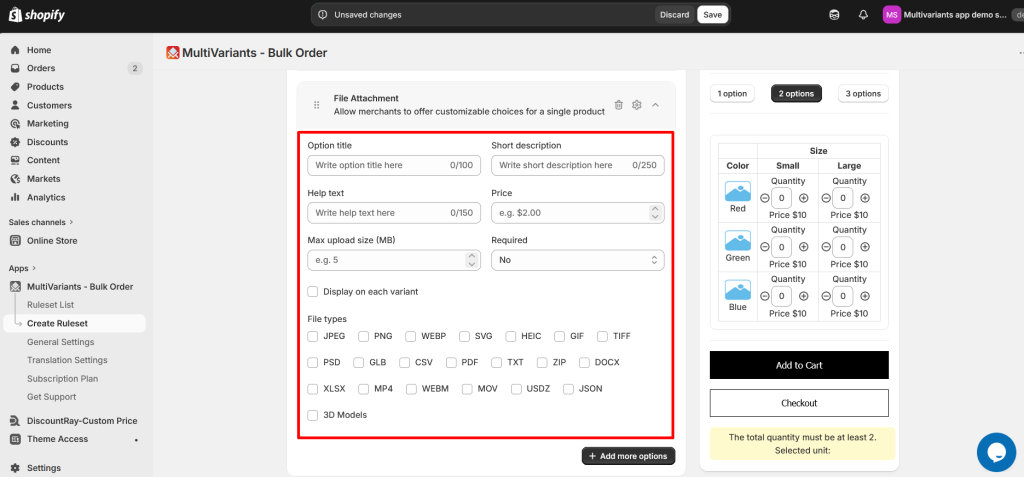
>> Configure the fields you need — only the ones you fill in will apply, the rest stay optional:
- Option title — the label shown above the upload button, e.g. “Upload your logo”.
- Short description — optional one-liner for context.
- Help text — optional line below the upload button (good place to mention max size or accepted formats).
- Price — add-on price applied when the customer uploads a file (If needed ).
- Max upload size (MB) — the largest file size the customer can upload.
- Required — set to Yes if the customer must upload a file to check out.
- Display on each variant — leave unchecked to show one upload button at the top, shared across all variants. Check it to repeat under each variant row.
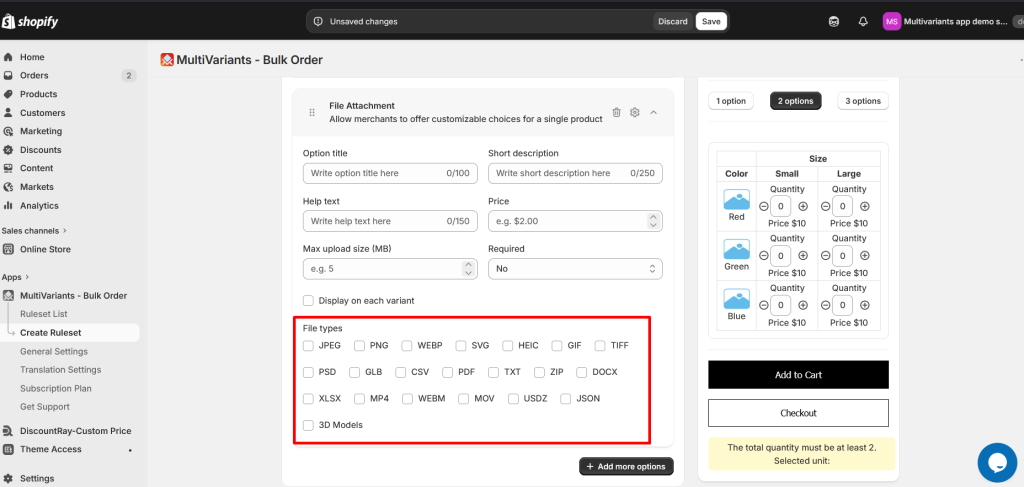
>> In the File types section, tick the formats you want to accept. If a customer tries to upload a format that isn’t ticked, the upload will accept all formats. Available types:
- Images — JPEG, PNG, WEBP, SVG, HEIC, GIF, TIFF, PSD
- 3D models — GLB, USDZ
- Documents — CSV, PDF, TXT, DOCX, XLSX
- Archives — ZIP
- Video — MP4, WEBM, MOV
- Other — JSON
>> Click Save in the top save bar.
Your File Attachment option is now live on every product the ruleset applies to. You can also add more options by clicking the + Add more options button, and adjust the design and placement of the option by following the steps below.
>> To add another option, click + Add more options at the bottom.
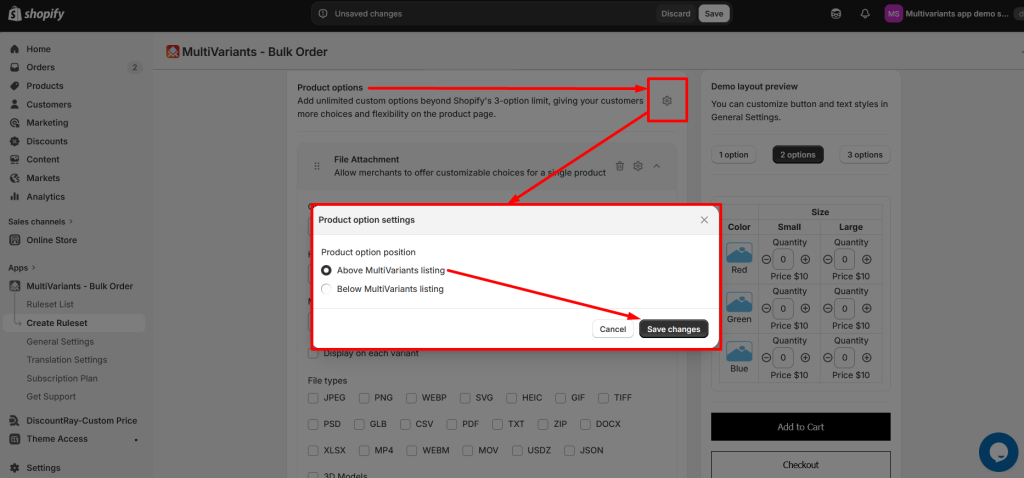
>> To choose where the File Attachment option appears on the product page, click the small gear icon at the top of the Product Options tab, select Above or Below MultiVariants listing, and click Save changes.
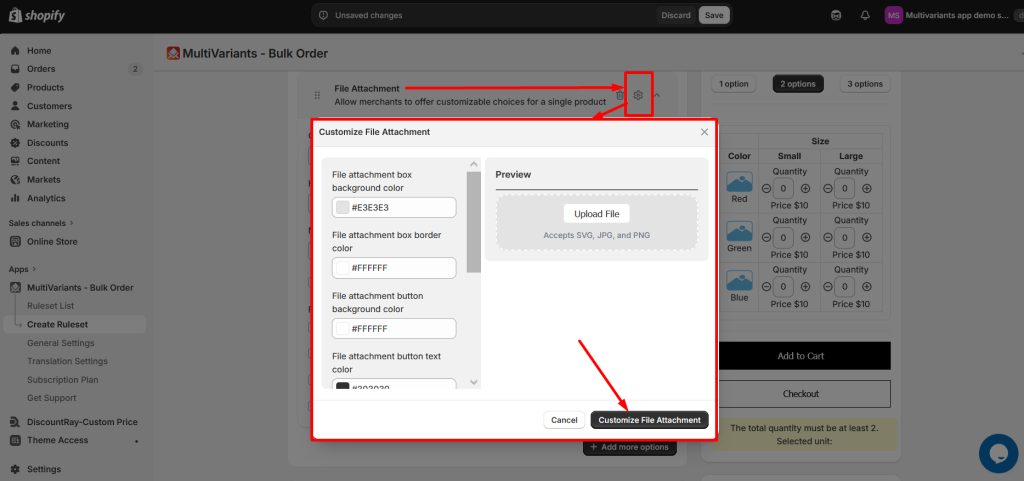
>> To restyle the File Attachment option, click the gear icon at the top right of the option card and adjust border colors, background, text color, and border radius. Click Customize to apply.
Need Help? #
Still, if you face any further issues or need help, feel free to contact us. Our support team will be happy to help you.
You can always reach us via
- 💬 Live Chat: in MultiVariants app
- 📧 Email: support@multivariants.com
- 📅 Live Meeting: https://calendly.com/efolisupport
Good luck, and happy selling with MultiVariants! 🚀


