A minimum order quantity (MOQ) sets the fewest units a customer must buy in a single order. For wholesale merchants, it can help prevent unprofitable small orders, simplify case-pack ordering, and make fulfillment more predictable.
Shopify now includes native B2B quantity rules for minimum, maximum, and increment quantities on Basic, Grow, Advanced, and Plus. These rules are managed through B2B catalogs and apply at the product-variant level. However, merchants may still need an app when they want different ordering workflows, such as letting buyers combine multiple variants to reach one total MOQ.
This guide explains how Shopify minimum order quantity rules work in 2026, how to set them natively for B2B customers, and when an app such as MultiVariants is useful for more flexible bulk-ordering requirements.
Quick answer: Yes, Shopify can now enforce minimum order quantities natively for B2B customers through catalog quantity rules. These rules work per variant. If you need buyers to mix multiple variants to reach one combined MOQ, you will need a different setup, such as MultiVariants.
Summary
Shopify B2B supports minimum, maximum, and increment quantity rules through catalogs.
Native Shopify quantity rules apply to individual product variants.
Merchants can use MOQ rules to control small orders, case packs, and wholesale quantities.
MultiVariants can add more flexible rules, including minimum or maximum quantities across multiple variants combined.
The right option depends on whether you need simple variant-level B2B quantity rules or a more customized bulk-ordering experience.
What a Shopify Minimum Order Quantity Means
A Shopify minimum order quantity is the smallest number of units a customer must buy to place an order. If your MOQ is 10, they need to add at least 10 units before they can check out. It is a simple way to make sure every sale covers your effort and costs.
Some stores use a minimum order value Shopify rule instead. It means buyers must reach a set amount, like $100. Both rules help you sell smarter and keep profits stable. For example, a store that sells custom notebooks may set an MOQ of 20 units or a $150 minimum order value. This helps them avoid small, one-off orders that waste packaging and time.
MOQ and economic order quantity (EOQ) are different. MOQ is the minimum quantity a seller requires a customer to purchase, while EOQ is an inventory-planning calculation used to determine an efficient reorder quantity. A merchant might consider both when planning inventory, but they solve different problems.
Up next, we will tell you why MOQ is so important for your Shopify store. We have some strong reasons listed below with real-world examples.
Why Set a Minimum Order Quantity in Shopify
Stores that skip a Shopify minimum order quantity often struggle with too many small and low-value orders. They spend hours packing cheap items that barely pay for postage.
Adding order rules changes that. Here is how a Shopify minimum order quantity helps:
Raises Average Order Value (AOV)
Customers must buy more, so each sale earns more. For example, if a bakery sells boxes of cookies, setting a minimum order of 5 boxes ensures the sale covers ingredient and packaging costs.
Keeps Profit Margins Safe
You avoid orders that cost more to ship than they make. For example, a soap maker selling handmade bars may find it unprofitable to ship one bar at a time. Setting a minimum of 4 bars per order keeps profit margins intact.
Simplifies Bulk or Wholesale Orders
Using both Shopify’s minimum order quantity and maximum order quantity keeps buying limits fair for everyone. For example, a clothing wholesaler may set a minimum of 50 T-shirts but a maximum of 300 per buyer to manage supply for all customers.
Keeps Stock and Cash Flow Steady
Predictable order sizes make planning and restocking easier. For example, you sell phone cases and know that every order must include at least 10 pieces. As a result, you can order raw materials in bulk and maintain smooth cash flow.
Predictable order quantities help you to be more prepared and efficient.
Builds Better Supplier and Customer Habits
Regular and consistent orders help your whole business run smoothly. For example, your supplier can prepare goods in advance when you have consistent order sizes, and customers learn your store’s rules over time.
Gives Customers Clarity
Clearly displaying an MOQ helps buyers understand the ordering requirement before they reach the cart. For example, a wholesaler might show “Minimum 6 units per variant” or “Order at least 24 units across selected variants.” Clear quantity rules reduce trial and error and help buyers build a valid order faster.
Setting an MOQ is only useful if the number makes sense for your margins and fulfillment costs. Before choosing a threshold, consider your unit economics, packaging costs, inventory turnover, and typical wholesale order size. If you are still deciding what that number should be, start by calculating the right minimum order quantity for your business.
Ways to Set a Minimum Order Quantity in Shopify
There are now several ways to set minimum order quantities on Shopify. The right method depends on whether you sell through Shopify B2B, need rules for regular retail customers, or want buyers to combine multiple variants to meet an order minimum.
1. Use Shopify's Native B2B Quantity Rules
Shopify B2B supports quantity rules for minimum, maximum, and increment quantities. Merchants can configure these rules through B2B catalogs for specific products or product variants.
For example, a wholesaler selling T-shirts could require a buyer to purchase at least 10 units of the blue-medium variant and order it in increments of 5.
Shopify's native quantity rules are available on Basic, Grow, Advanced, and Plus. B2B catalog features on Basic, Grow, and Advanced require the store to use the new Shopify Markets.
One important limitation is that Shopify applies these quantity rules at the variant level. If a blue shirt has a minimum of 10 and a gray shirt also has a minimum of 10, a buyer cannot select 5 blue and 5 gray shirts to satisfy a combined minimum of 10.
How to Set a Native B2B MOQ in Shopify
To create a quantity rule:
In Shopify admin, go to Markets > Catalogs.
Open the B2B catalog you want to edit.
Go to Products and pricing and select Manage products and pricing.
Find the relevant product or variant.
Add a quantity rule.
Enter the required Increment, Minimum, and, if needed, Maximum quantities.
Save the catalog.
For example, setting an increment of 6 and a minimum of 12 means the buyer can order 12, 18, 24, 30, and so on.
2. Use Custom Storefront Code
Theme code can be used to display quantity requirements or change how quantity selectors behave on the storefront. This can be useful when you want custom messaging or presentation around an MOQ.
However, storefront code alone should not be treated as a replacement for reliable order validation. Custom JavaScript or Liquid can also require ongoing maintenance when themes or storefront behavior change.
For merchants who need enforceable rules without maintaining custom code, native Shopify B2B quantity rules or a compatible Shopify app are generally easier to manage.
3. Use a Shopify MOQ App for More Flexible Rules
An app becomes useful when your ordering requirements go beyond Shopify's native variant-level B2B quantity rules.
For example, a merchant might want buyers to select different sizes or colors and meet a minimum based on the combined quantity of all those variants rather than requiring every individual variant to meet its own minimum.
MultiVariants supports minimum and maximum quantities per variant as well as minimum and maximum totals across all variants of the same product. This makes it useful for bulk-ordering scenarios where buyers mix several variants in one order.
Adding a Maximum Order Quantity
A maximum order quantity limits how many units a buyer can purchase at one time. It can help merchants protect limited inventory, distribute stock across wholesale accounts, or control purchases of high-demand products.
Shopify B2B quantity rules support maximum quantities at the variant level. MultiVariants can also set a maximum per variant or a maximum across all variants combined. For example, a merchant could allow no more than 50 units of one specific variant, or no more than 100 units across all sizes and colors of the product.
Shopify Native MOQ vs MultiVariants: Which Should You Use?
Requirement | Shopify Native B2B Quantity Rules | MultiVariants |
|---|---|---|
Minimum quantity per variant | ✅ | ✅ |
Maximum quantity per variant | ✅ | ✅ |
Quantity increments | ✅ | ✅ |
Combine different variants to reach one minimum total | ❌ | ✅ |
Combine different variants under one maximum total | ❌ | ✅ |
Bulk ordering multiple variants from one product page | Depends on B2B storefront setup | ✅ |
Matrix/grid/list ordering layouts | Not the purpose of quantity rules | ✅ |
Regular B2C + B2B ordering use cases | Native rules are B2B catalog features | ✅ Depending on ruleset configuration |
Shopify's native quantity rules are a strong option when your B2B customers only need straightforward minimum, maximum, or increment requirements for individual variants. An app becomes more relevant when the ordering rule needs to work across variants. For example, a clothing wholesaler might require 24 shirts in total while allowing buyers to mix sizes and colors. MultiVariants can enforce that minimum across all selected variants instead of requiring every size and color to meet its own separate MOQ.
When MultiVariants Makes Sense for MOQ Rules
Shopify's native quantity rules may be enough for straightforward B2B minimums, maximums, and increments. MultiVariants becomes useful when buyers need a more flexible bulk-ordering experience, particularly when several product variants need to contribute toward the same order requirement.
With MultiVariants, you can:
Set minimum and maximum quantities per variant
Set minimum and maximum totals across all variants combined
Require quantity increments or case-pack ordering
Let customers order multiple variants from one product page
Display products in table, grid, list, or matrix layouts
Show ordering restrictions before customers complete their purchase
For example, instead of requiring a clothing buyer to purchase at least five units of every size, a merchant could require 24 shirts in total and let the buyer distribute those 24 units across the sizes and colors they actually need.
This keeps your store organized and saves hours of manual setup.
Shopify Minimum Order Quantity and Maximum Order Quantity Limits with MultiVariants
In this section, we will provide you with a simple step-by-step guide on how you can apply MOQ and maximum order quantity limits using the multi variant management app. We select Hello Kitty shirts as an example.
Before MultiVariants:
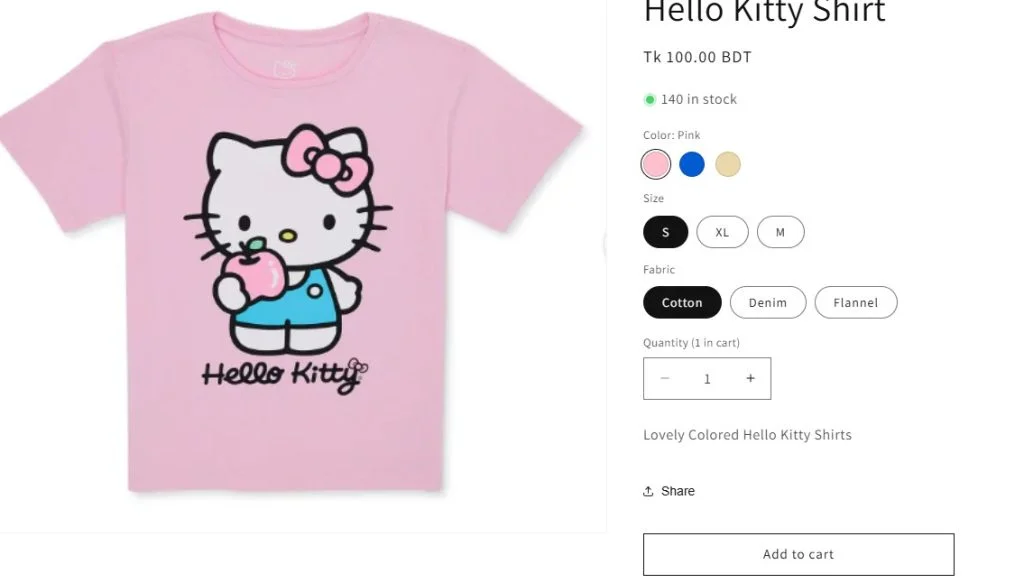
Step-By-Step Guide
Install the app from the Shopify app store.

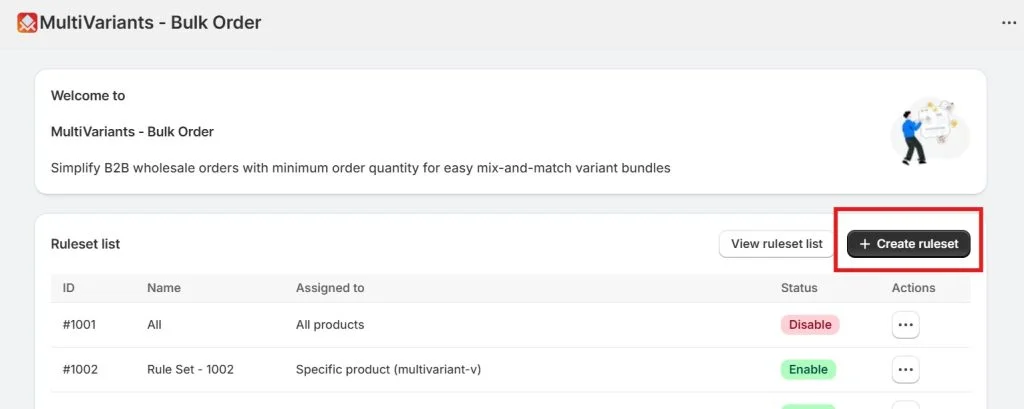
Go to the MultiVariants dashboard and select +Create ruleset.
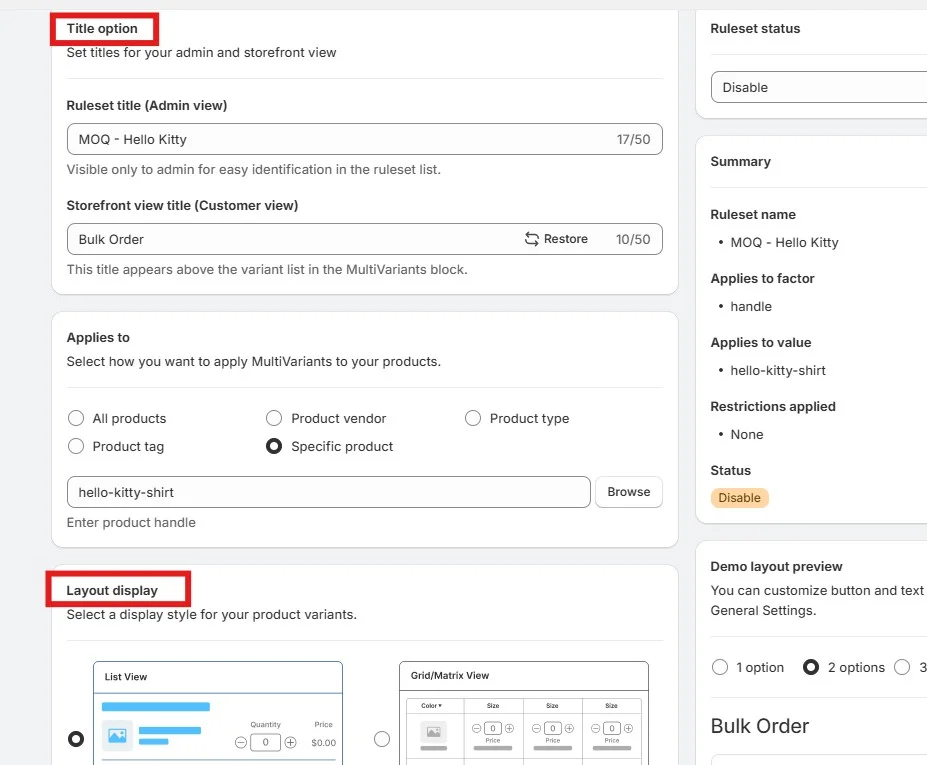
Fill in the basic information and choose Layout display.
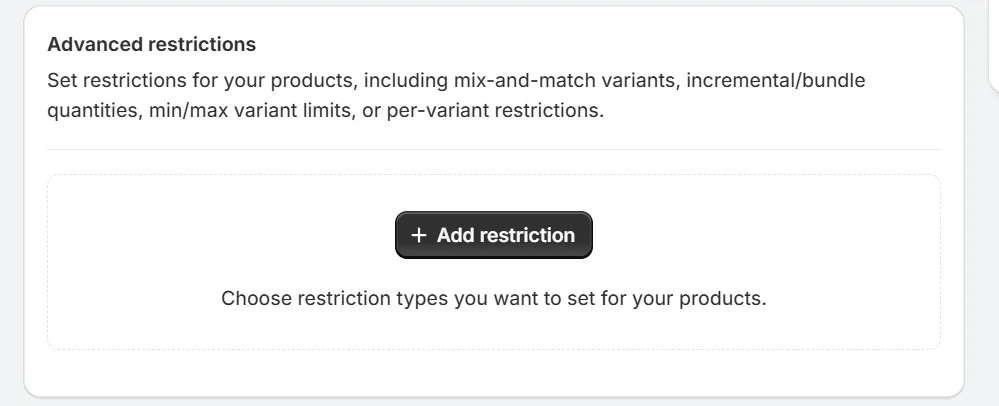
Scroll down and select +Add restriction.
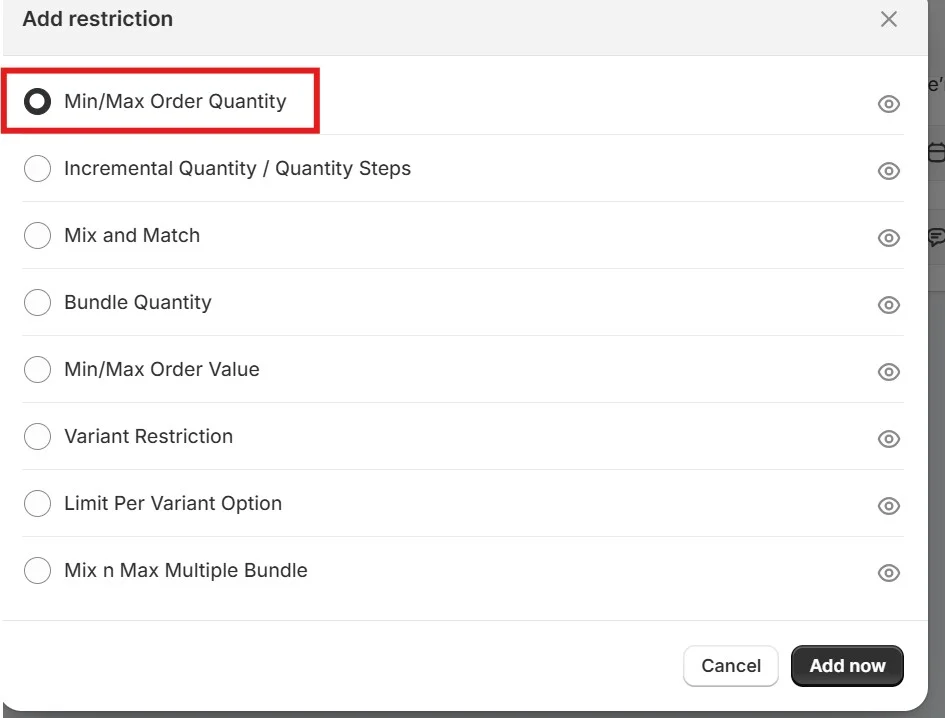
For the Shopify MOQ limit and max order quantity limit, we select Min/Max Order Quantity.
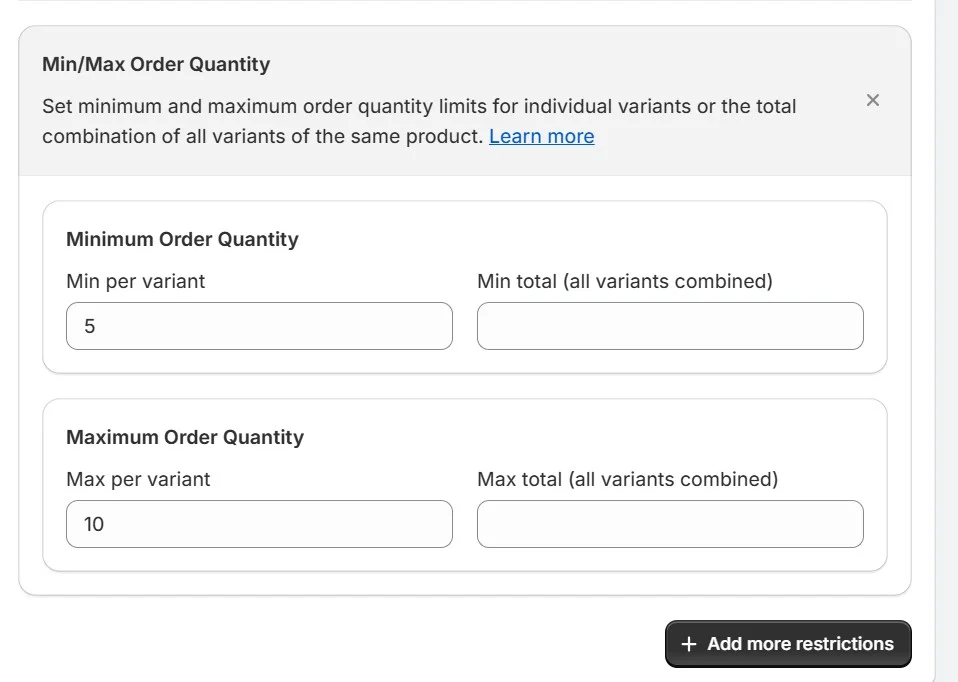
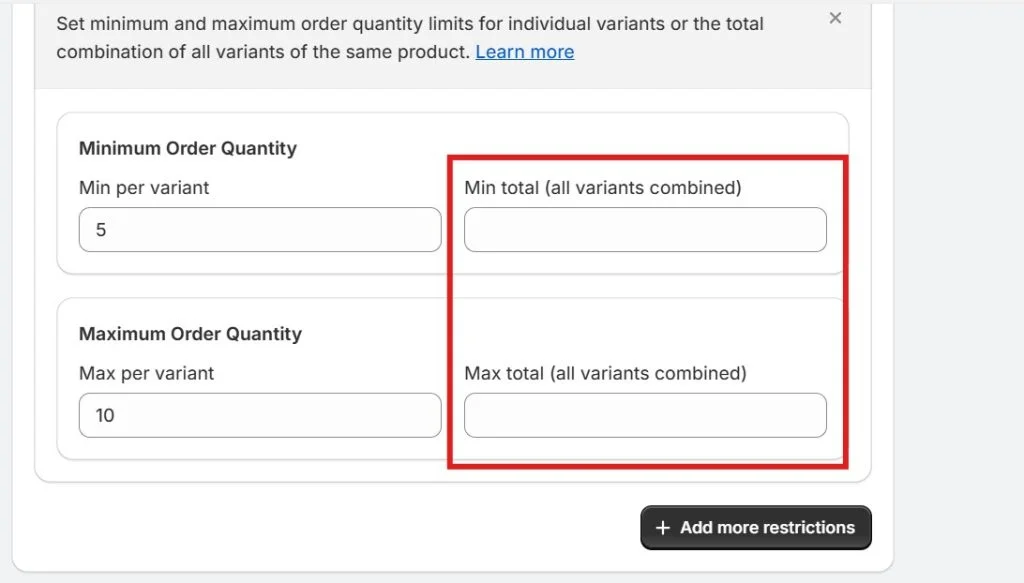
In this example, we select 5 as the minimum per variant under Minimum Order Quantity. We select 10 as the maximum per variant under the Maximum Order Quantity.
We save the settings and click Live view to see the product page.
After MultiVariants:
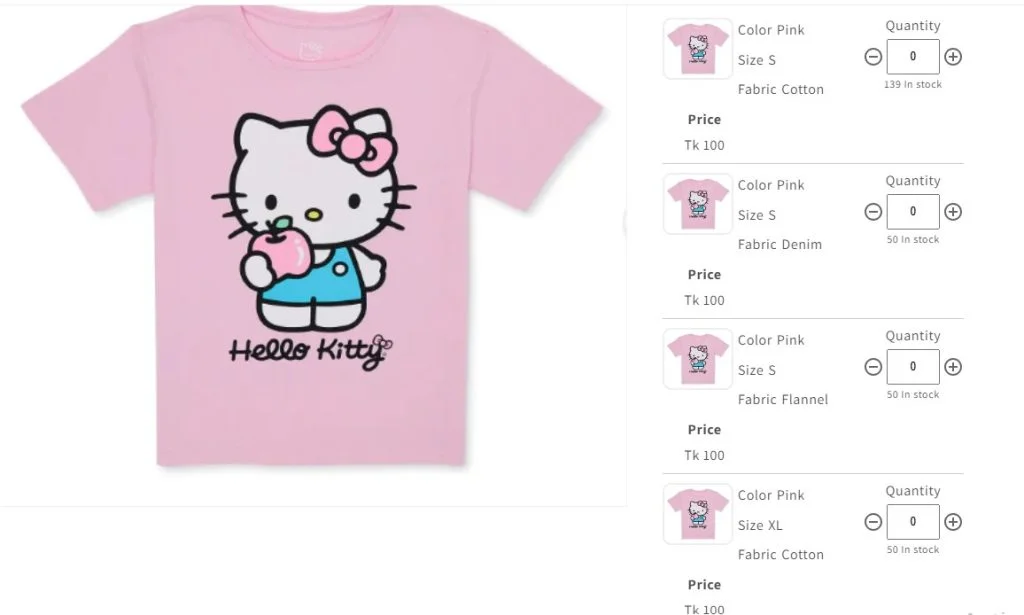
As you can see, all the product variants appear together in one product page. This makes the visual simple and selection easier.
Test the Configurations
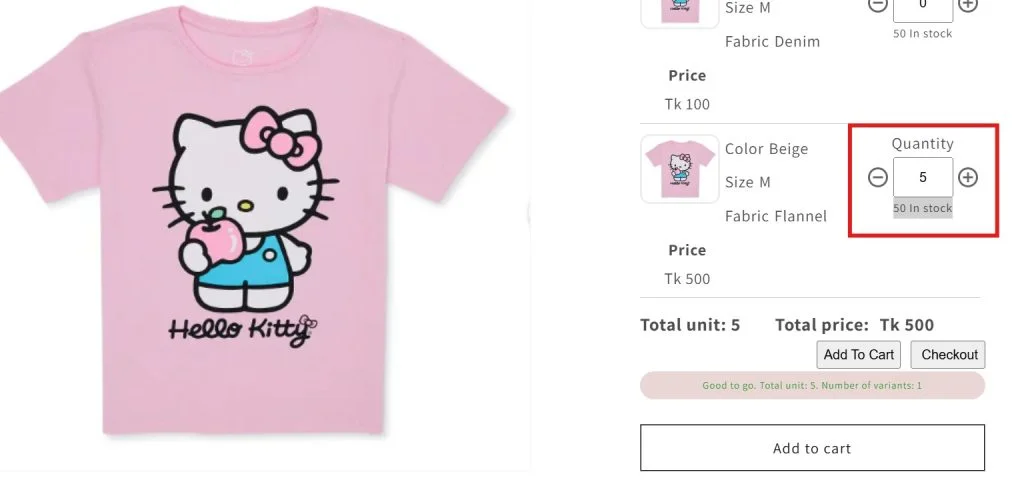
When we click on the quantity box, it will automatically start from 5, making sure that customers cannot select less than that quantity.
When we click on the quantity box, it will stop at 10, making sure that customers cannot go beyond that.
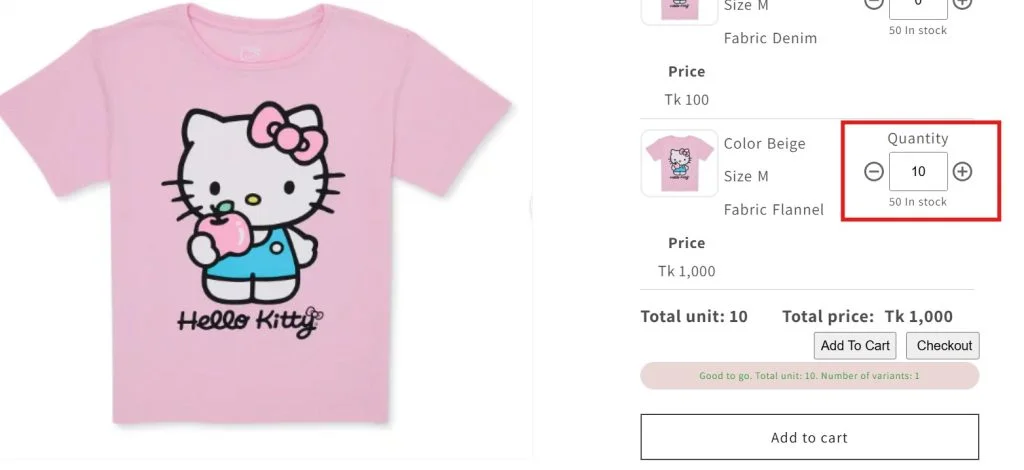
Keep in mind that we selected min and max order quantity limits for each variant. In our case, you are restricted to choosing from 5 to 10 for each product variant.
MultiVariants can also apply a minimum or maximum to the total quantity across all variants combined. For example, you could require a wholesale buyer to order at least 24 T-shirts while allowing them to mix Small, Medium, Large, and XL in any combination. This differs from Shopify's native B2B minimum quantity rules, where the minimum applies to each variant individually and quantities from different variants cannot be combined to meet that minimum.
Tips for Managing and Explaining MOQs
Setting MOQs is the easy part. Making sure shoppers understand them is what keeps sales smooth.
Here is how to do that:
Write the minimum quantity near the “Add to Cart” button
Use a banner or note at the top of your page to explain the rule
Warn buyers in the cart if they have not met the MOQ
Offer perks like free shipping or small discounts when they buy in bulk
For example, a skincare brand might write “Minimum 3 items per order for free shipping” right under the Add to Cart button. It helps customers plan their purchase without confusion.
Whatever method you use, make the rule visible before checkout. Buyers should understand the minimum, maximum, or increment requirement while they are building the order, not after they try to submit it.
Conclusion
Shopify merchants have more options for enforcing minimum order quantities than they did a few years ago. Native Shopify B2B quantity rules now support minimums, maximums, and increments at the variant level across Basic, Grow, Advanced, and Plus.
For many straightforward wholesale requirements, those native rules may be enough. The main question is how your buyers actually need to order. If each variant can have its own minimum, Shopify's B2B tools provide a direct solution. If buyers need to mix sizes, colors, flavors, or other variants and reach one combined quantity requirement, MultiVariants provides additional flexibility with per-variant and combined min/max rules alongside bulk-order form layouts.
Choose the setup based on the ordering rule you need rather than adding complexity where it is not necessary. The goal is to make the requirement clear to buyers and enforce it consistently throughout the ordering experience.